LoyerPro
Vidéos · pas à pasVideos · step by step

LoyerPro en vidéo.
Un geste après l’autre.
LoyerPro on video.
One tap at a time.

De courtes vidéos, de moins d’une minute, qui montrent l’application telle qu’elle est — sur téléphone et sur ordinateur, avec la voix et les sous-titres. Touchez une vidéo pour la lire. Short videos, under a minute each, that show the app as it is — on a phone and on a computer, with voice and subtitles. Tap a video to play it.

1Pour commencerGetting started

Voyez ce que fait LoyerPro, ouvrez votre compte, connectez-vous.See what LoyerPro does, open your account, sign in.

3 vidéos, sur téléphone et sur ordinateur, en français et en anglais3 videos, on a phone and on a computer, in English and French

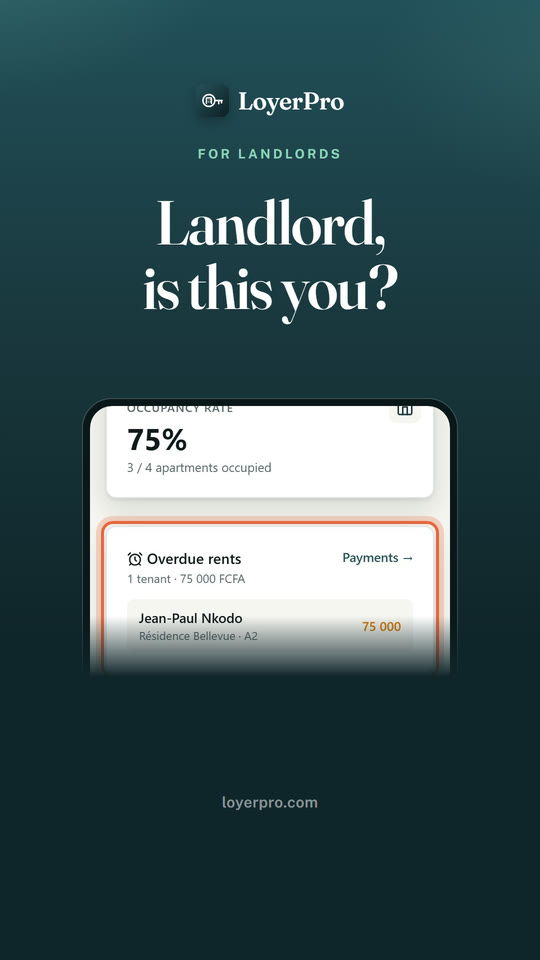
▶Sur téléphoneOn a phone0:420:42Lire « Bailleur, c’est vous ? » sur téléphonePlay “Landlord, is this you?” on a phone
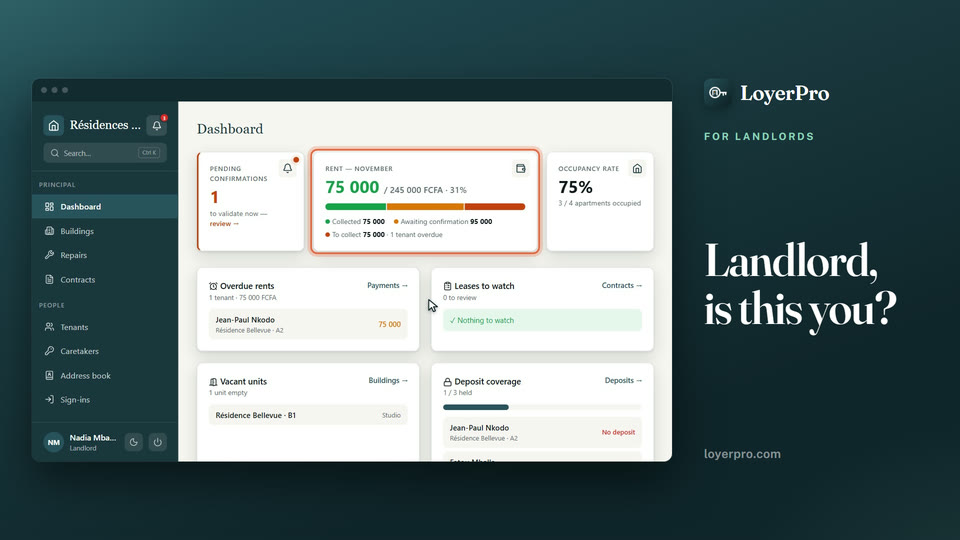
▶Sur ordinateurOn a computer0:420:41Lire « Bailleur, c’est vous ? » sur ordinateurPlay “Landlord, is this you?” on a computer

Pour les bailleursFor landlords

Bailleur, c’est vous ?Landlord, is this you?

Les questions que se pose un bailleur — et comment LoyerPro y répond.The questions landlords ask themselves — and how LoyerPro answers them.

Lire le texteRead the words
  1. Vous êtes bailleur ? Savez-vous qui a payé le loyer ce mois-ci ?
  2. Vos reçus se perdent-ils dans des cahiers et sur WhatsApp ?
  3. Savez-vous ce que votre immeuble rapporte vraiment ?
  4. Le gérez-vous de loin ?
  5. Si oui, voici comment LoyerPro fonctionne.
  6. Votre tableau de bord montre le loyer du mois : ce qui est entré, et qui doit encore.
  7. Votre locataire paie par Mobile Money, directement sur votre numéro, et envoie la preuve.
  8. Vous confirmez d’un geste. La quittance part toute seule.
  9. Réparations, dépenses et rapports : tout est au même endroit.
  1. Are you a landlord? Do you know who paid the rent this month?
  2. Are your receipts lost in notebooks and WhatsApp chats?
  3. Do you know what your building really earns?
  4. Do you manage it from far away?
  5. If yes, here is how LoyerPro works.
  6. Your dashboard shows the rent of the month: what came in, and who still owes.
  7. Your tenant pays by Mobile Money, straight to your number, and sends the proof.
  8. You confirm in a second. The receipt goes out by itself.
  9. Repairs, costs and reports are all in the same place.
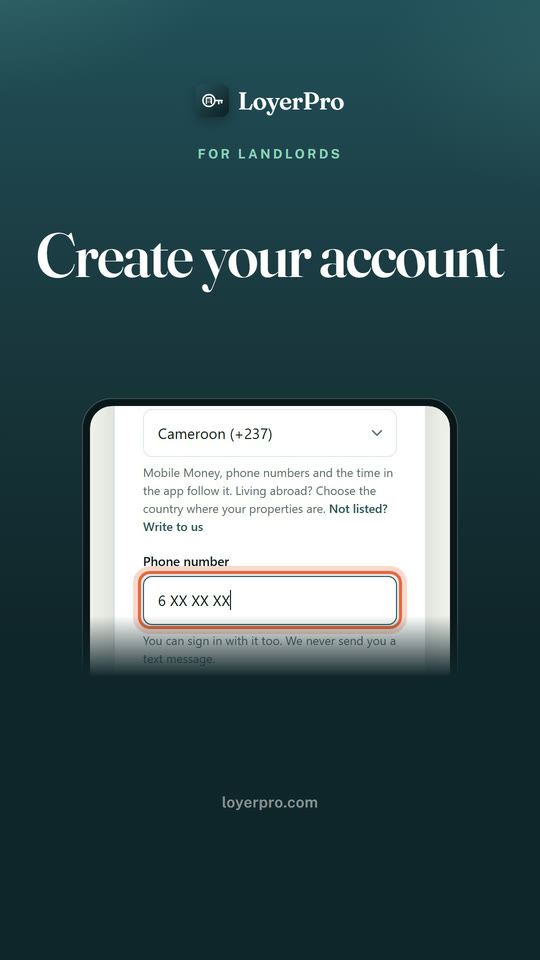
▶Sur téléphoneOn a phone0:420:41Lire « Créer votre compte » sur téléphonePlay “Create your account” on a phone
▶Sur ordinateurOn a computer0:420:39Lire « Créer votre compte » sur ordinateurPlay “Create your account” on a computer

Pour les bailleursFor landlords

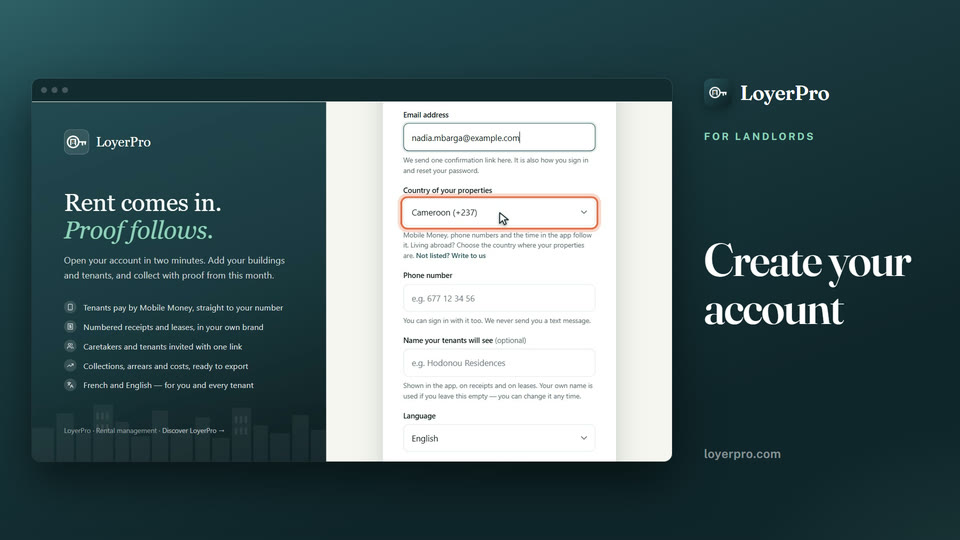
Créer votre compteCreate your account

Du site au compte prêt : le formulaire, l’e-mail et l’immeuble d’exemple.From the website to a ready account: the form, the e-mail and the example building.

Lire le texteRead the words
  1. Allez sur loyerpro.com et appuyez sur « Créer mon compte ».
  2. Écrivez votre nom complet et votre adresse e-mail.
  3. Choisissez le pays de vos immeubles, puis écrivez votre numéro de téléphone.
  4. Choisissez un mot de passe, écrivez-le deux fois, et acceptez les conditions.
  5. Appuyez sur « Créer mon compte ». LoyerPro vous envoie un e-mail.
  6. Ouvrez-le et appuyez sur le bouton. Votre compte est prêt.
  7. Un immeuble d’exemple est déjà là, pour vous montrer comment tout fonctionne. Supprimez-le quand vous voulez.
  1. Go to loyerpro.com and press Create my account.
  2. Type your full name and your e-mail address.
  3. Choose the country of your buildings, then type your phone number.
  4. Choose a password, type it twice, and accept the terms.
  5. Press Create my account. LoyerPro sends you an e-mail.
  6. Open it and press the button. Your account is ready.
  7. An example building is already there, to show you how it works. Delete it whenever you like.
▶Sur téléphoneOn a phone0:310:29Lire « Se connecter » sur téléphonePlay “Sign in” on a phone
▶Sur ordinateurOn a computer0:310:29Lire « Se connecter » sur ordinateurPlay “Sign in” on a computer

Pour tout le mondeFor everyone

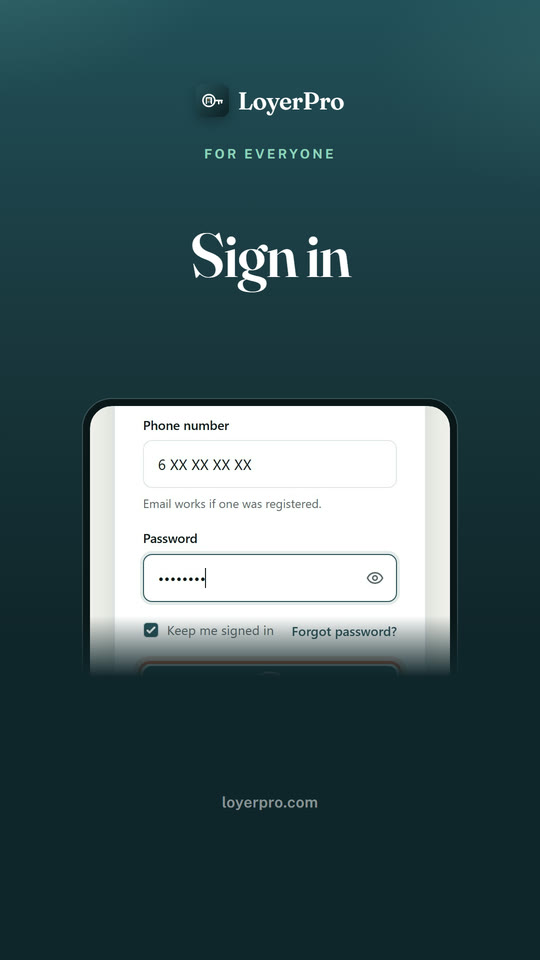
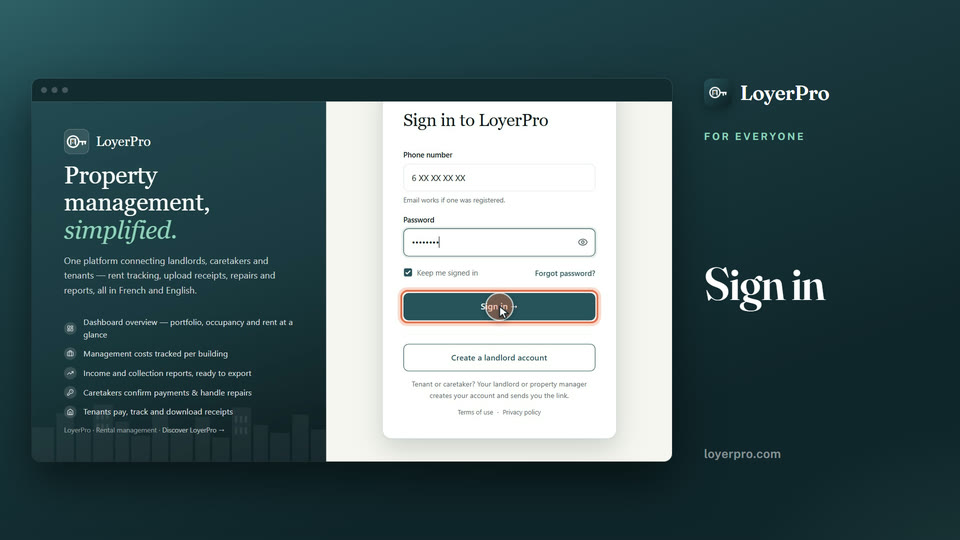
Se connecterSign in

Votre numéro, votre mot de passe — et quoi faire si vous l’avez oublié.Your phone number, your password — and what to do if you forgot it.

Lire le texteRead the words
  1. Allez sur loyerpro.com et appuyez sur « Se connecter ».
  2. Écrivez votre numéro de téléphone, comme vous l’écrivez d’habitude. Votre adresse e-mail marche aussi.
  3. Mot de passe oublié ? Locataires et gestionnaires demandent à leur bailleur. Un bailleur reçoit un lien par e-mail.
  4. Écrivez votre mot de passe, puis appuyez sur « Connexion ».
  5. Vous y êtes. Votre tableau de bord s’ouvre.
  1. Go to loyerpro.com and press Sign in.
  2. Type your phone number, the way you usually write it. Your e-mail address works too.
  3. Forgot your password? Tenants and caretakers ask their landlord. A landlord gets a link by e-mail.
  4. Type your password, then press Sign in.
  5. You are in. Your dashboard opens.
2Immeubles et locatairesBuildings and tenants

Vos immeubles, vos logements et vos locataires dans l’application.Your buildings, your units and your tenants in the app.

1 vidéo, sur téléphone et sur ordinateur, en français et en anglais1 video, on a phone and on a computer, in English and French

▶Sur téléphoneOn a phone0:450:41Lire « Ajouter un immeuble et ses appartements » sur téléphonePlay “Add a building and its apartments” on a phone
▶Sur ordinateurOn a computer0:450:40Lire « Ajouter un immeuble et ses appartements » sur ordinateurPlay “Add a building and its apartments” on a computer

Pour les bailleursFor landlords

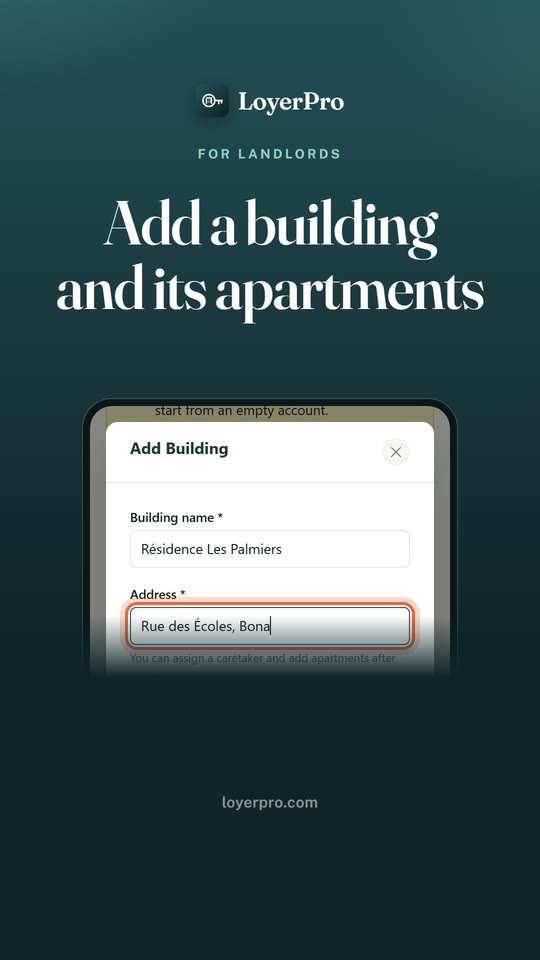
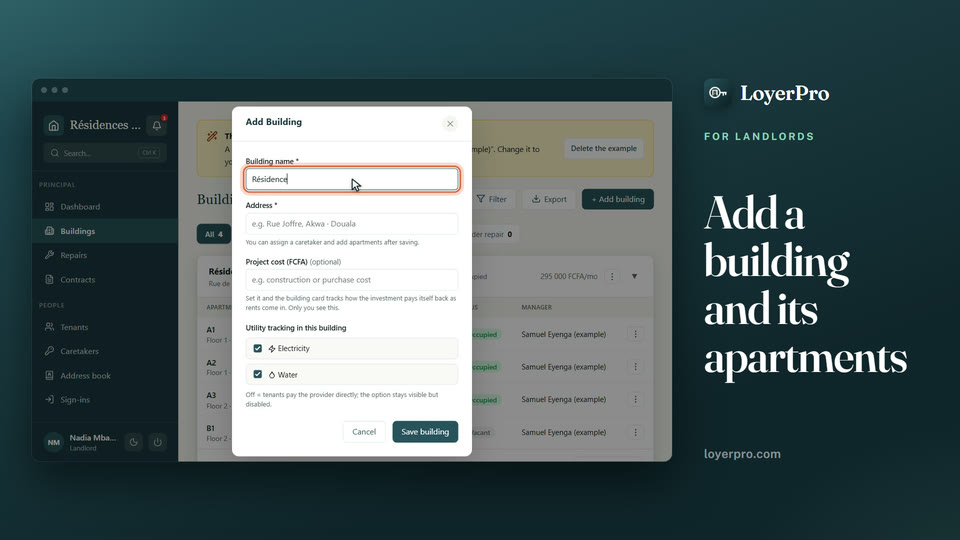
Ajouter un immeuble et ses appartementsAdd a building and its apartments

Votre premier immeuble : son nom, son adresse, puis ses appartements et leur loyer.Your first building: its name, its address, then its apartments and their rent.

Lire le texteRead the words
  1. Première étape : ajouter votre immeuble. Sur votre tableau de bord, appuyez sur « Aller aux Immeubles ».
  2. Appuyez sur « Ajouter un immeuble ». Écrivez son nom et son adresse.
  3. Appuyez sur « Enregistrer l’immeuble ». Votre immeuble est dans la liste.
  4. Maintenant, ses appartements. Appuyez sur « Ajouter un appartement ».
  5. Écrivez le numéro de l’appartement, choisissez son type, puis écrivez le loyer mensuel.
  6. Appuyez sur « Enregistrer l’appartement ». Faites de même pour chaque appartement.
  7. Deux étapes sont faites. La suivante : ajouter un locataire.
  1. Your first step: add your building. On your dashboard, press Go to Buildings.
  2. Press Add building. Type its name and its address.
  3. Press Save building. Your building is in the list.
  4. Now its apartments. Press Add apartment.
  5. Type the apartment's number, choose its type, then type the monthly rent.
  6. Press Save apartment. Do the same for each apartment.
  7. Two steps are done. Next: add a tenant.
3BauxLeases

Le bail préparé, envoyé et signé, sur téléphone ou sur ordinateur.The lease prepared, sent and signed, on a phone or a computer.

1 vidéo, sur téléphone et sur ordinateur, en français et en anglais1 video, on a phone and on a computer, in English and French

▶Sur téléphoneOn a phone0:370:35Lire « Signer son bail » sur téléphonePlay “Sign your lease” on a phone
▶Sur ordinateurOn a computer0:370:36Lire « Signer son bail » sur ordinateurPlay “Sign your lease” on a computer

Pour les locatairesFor tenants

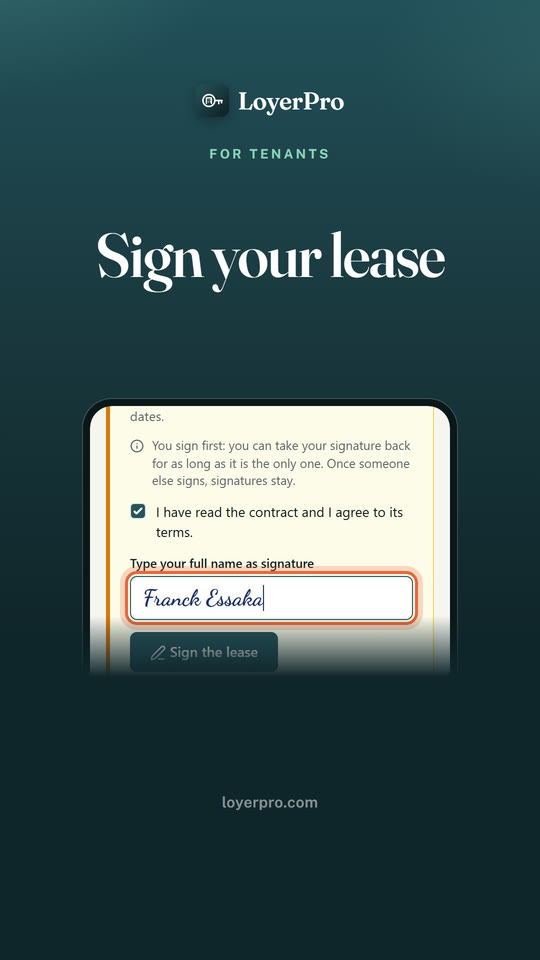
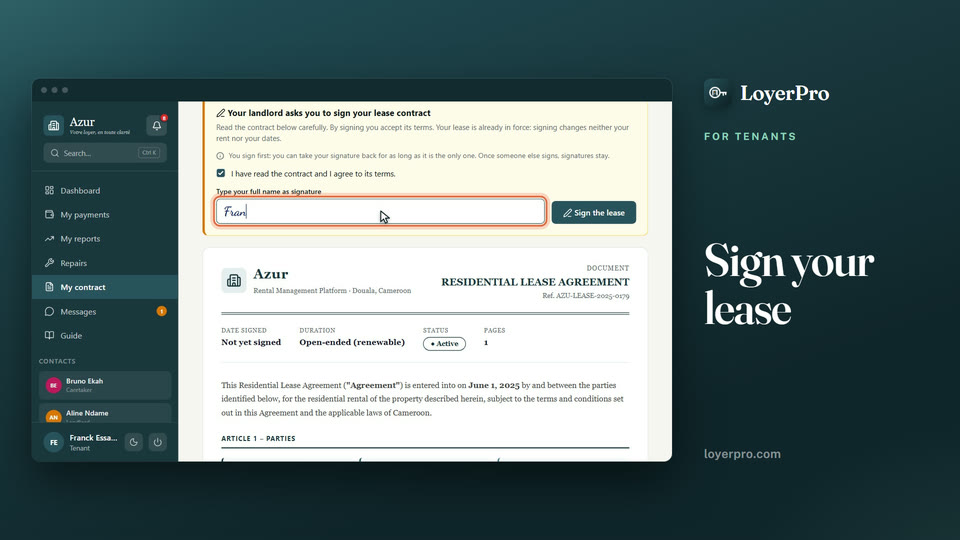
Signer son bailSign your lease

Le locataire lit son contrat, coche la case et signe.The tenant reads the contract, ticks the box and signs.

Lire le texteRead the words
  1. Votre bail attend votre signature. Voici comment le signer.
  2. Ouvrez le message sur votre page d’accueil. Il ouvre votre contrat.
  3. Lisez le contrat. Vous y trouvez le logement, les dates, le loyer et les règles.
  4. Si vous êtes d’accord, cochez la case.
  5. Écrivez votre nom complet. C’est votre signature.
  6. Puis appuyez sur « Signer le bail ».
  7. C’est fait. Vous avez signé. Si personne d’autre n’a encore signé, vous pouvez encore retirer votre signature.
  1. Your lease is waiting for your signature. Here is how to sign it.
  2. Open the message on your home page. It opens your contract.
  3. Read the contract. It shows the home, the dates, the rent and the rules.
  4. If you agree, tick the box.
  5. Type your full name. This is your signature.
  6. Then press Sign the lease.
  7. Done. You have signed. If nobody else has signed yet, you can still take your signature back.
4Loyers et paiementsRent and payments

Le loyer par Mobile Money, la preuve, la quittance.Rent by Mobile Money, the proof, the receipt.

1 vidéo, sur téléphone et sur ordinateur, en français et en anglais1 video, on a phone and on a computer, in English and French

▶Sur téléphoneOn a phone0:560:57Lire « Loyer et caution en un seul paiement » sur téléphonePlay “Rent and deposit in one payment” on a phone
▶Sur ordinateurOn a computer0:560:58Lire « Loyer et caution en un seul paiement » sur ordinateurPlay “Rent and deposit in one payment” on a computer

Pour tout le mondeFor everyone

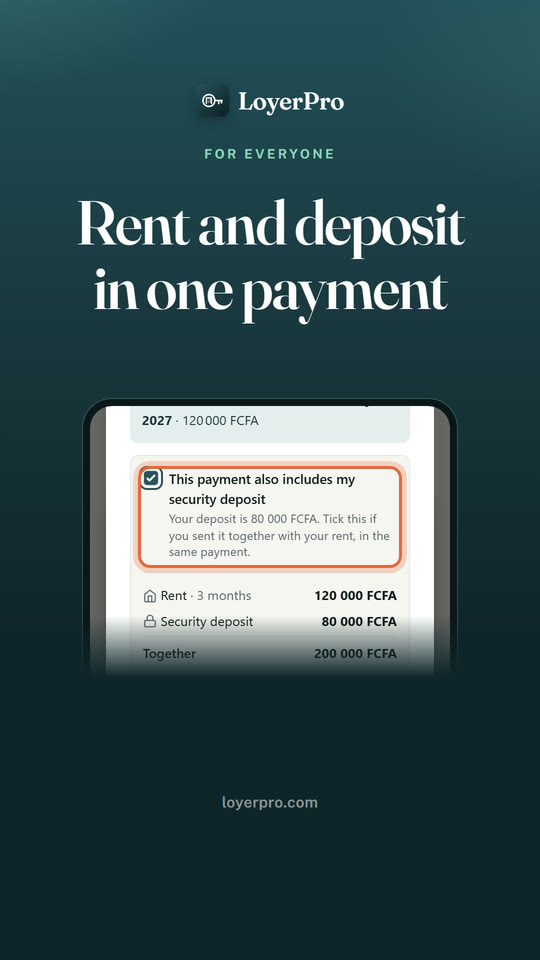
Loyer et caution en un seul paiementRent and deposit in one payment

Une case cochée, et la caution et le loyer sont séparés : deux quittances.One tick, and the deposit and the rent are kept apart: two receipts.

Lire le texteRead the words
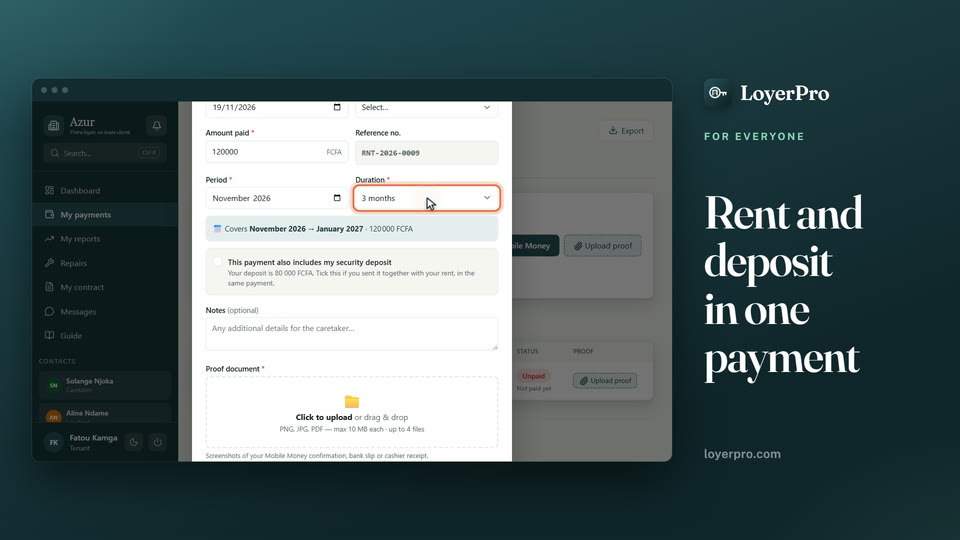
  1. Fatou emménage. Elle paie trois mois de loyer et sa caution ensemble, en un seul paiement Mobile Money.
  2. Elle envoie sa preuve pour trois mois, et coche « Ce paiement comprend aussi ma caution ».
  3. Sa preuve attend son propriétaire. Sa ligne indique que la caution est dedans.
  4. Son propriétaire veut l’enregistrer lui-même : l’application l’arrête, sa preuve attend déjà.
  5. Il ouvre donc sa preuve. La case est déjà cochée : la caution et le loyer sont séparés.
  6. Un seul appui : la caution est conservée, le loyer couvre ses trois mois. Deux quittances.
  7. Un autre locataire, Paul : son argent était déjà saisi à la main. Sa carte le dit — on appuie sur « Rejeter comme doublon ».
  8. Dans le compte de Fatou : trois mois de loyer, sa caution conservée, deux quittances. Rien n’est compté deux fois.
  1. Fatou is moving in. She pays three months of rent and her deposit in one Mobile Money payment.
  2. She sends her proof for three months, and ticks 'This payment also includes my security deposit'.
  3. Her proof waits for her landlord. Her line says the deposit is in it.
  4. Her landlord tries to record it by hand: the app stops him, her proof is already waiting.
  5. He opens her proof. The box is already ticked: the deposit and the rent are shown apart.
  6. One press: the deposit is held, the rent covers its three months. Two receipts.
  7. Another tenant, Paul: his money is already recorded. His card says so: press 'Reject as duplicate'.
  8. In Fatou's account: three months of rent, her deposit held, two receipts. Nothing is counted twice.
5Dépenses et rapportsCosts and reports

Ce que vos immeubles coûtent et rapportent, mois par mois.What your buildings cost and earn, month by month.

7 vidéos, sur téléphone et sur ordinateur, en français et en anglais7 videos, on a phone and on a computer, in English and French

▶Sur téléphoneOn a phone0:380:41Lire « Vos rapports : la période, un immeuble, l’export » sur téléphonePlay “Your reports: the period, one building, the export” on a phone
▶Sur ordinateurOn a computer0:390:42Lire « Vos rapports : la période, un immeuble, l’export » sur ordinateurPlay “Your reports: the period, one building, the export” on a computer

Pour les bailleursFor landlords

Vos rapports : la période, un immeuble, l’exportYour reports: the period, one building, the export

Les six rapports, la période, un immeuble, et l’export pour votre comptable.The six reports, the period, one building, and the export for your accountant.

Lire le texteRead the words
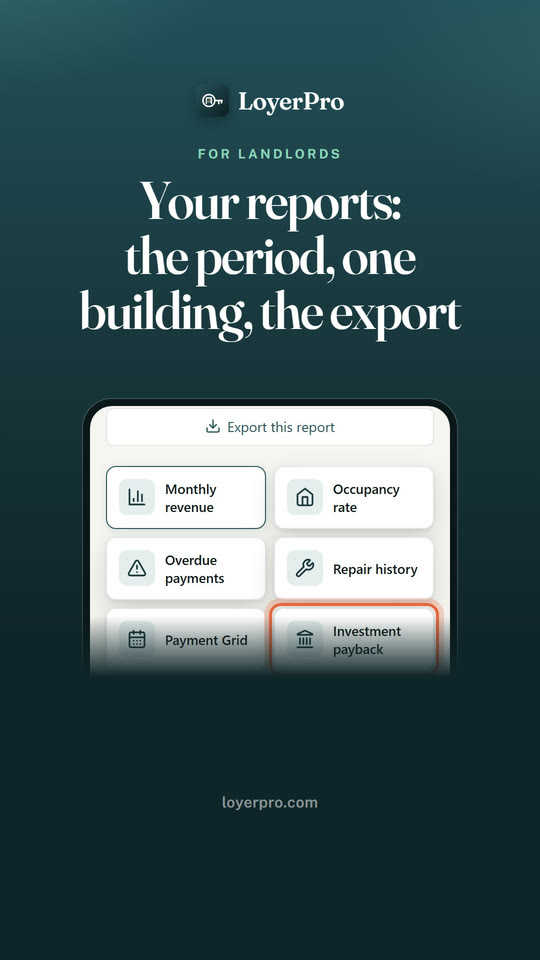
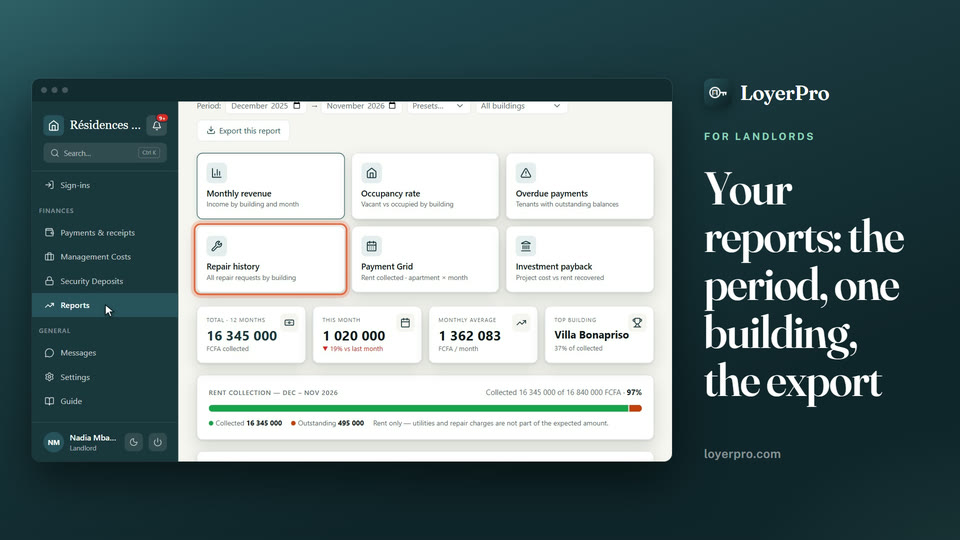
  1. Dans le menu, ouvrez « Rapports ». Six rapports vous attendent, un par carte.
  2. Les revenus, l’occupation, les retards de paiement, les réparations, la grille des paiements et l’amortissement.
  3. En haut, choisissez la période. Par exemple : cette année.
  4. À côté, choisissez un immeuble. Chaque rapport ne montre plus que lui.
  5. « Exporter ce rapport » télécharge le rapport ouvert, pour votre comptable.
  6. Voyons maintenant chaque rapport, un par un.
  1. In the menu, open Reports. Six reports wait for you, one per card.
  2. Revenue, occupancy, overdue payments, repairs, the payment grid and investment payback.
  3. At the top, choose the period. For example: this year.
  4. Next to it, choose one building. Every report then shows only that building.
  5. Export this report downloads the report that is open, for your accountant.
  6. Now let's look at each report, one by one.
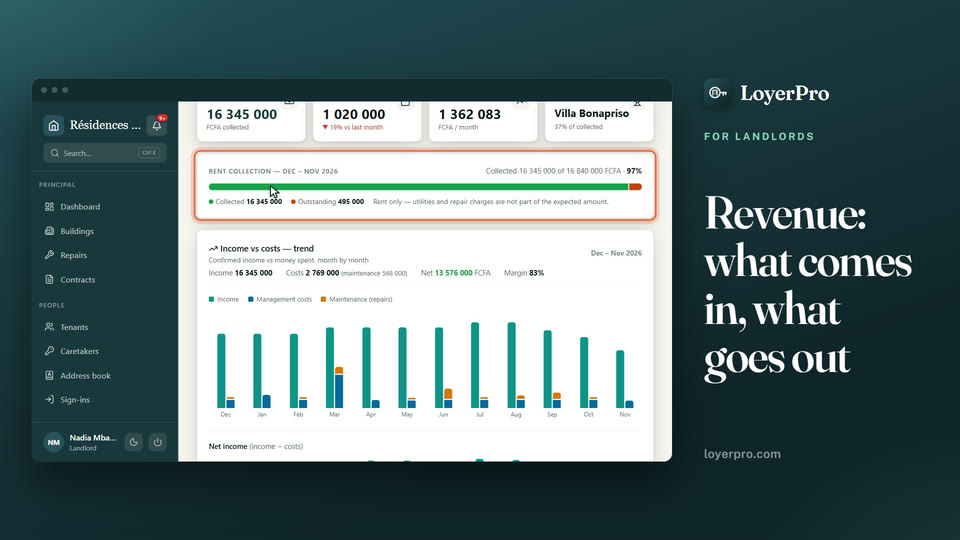
▶Sur téléphoneOn a phone0:360:37Lire « Revenus : ce qui entre, ce qui sort » sur téléphonePlay “Revenue: what comes in, what goes out” on a phone
▶Sur ordinateurOn a computer0:360:37Lire « Revenus : ce qui entre, ce qui sort » sur ordinateurPlay “Revenue: what comes in, what goes out” on a computer

Pour les bailleursFor landlords

Revenus : ce qui entre, ce qui sortRevenue: what comes in, what goes out

Le total encaissé, les loyers attendus et dus, vos revenus face à vos dépenses.The total collected, the rent expected and owed, your income against your costs.

Lire le texteRead the words
  1. Ouvrez « Revenus mensuels ». En haut : le total encaissé sur la période.
  2. Puis ce mois-ci, la moyenne par mois, et l’immeuble qui rapporte le plus.
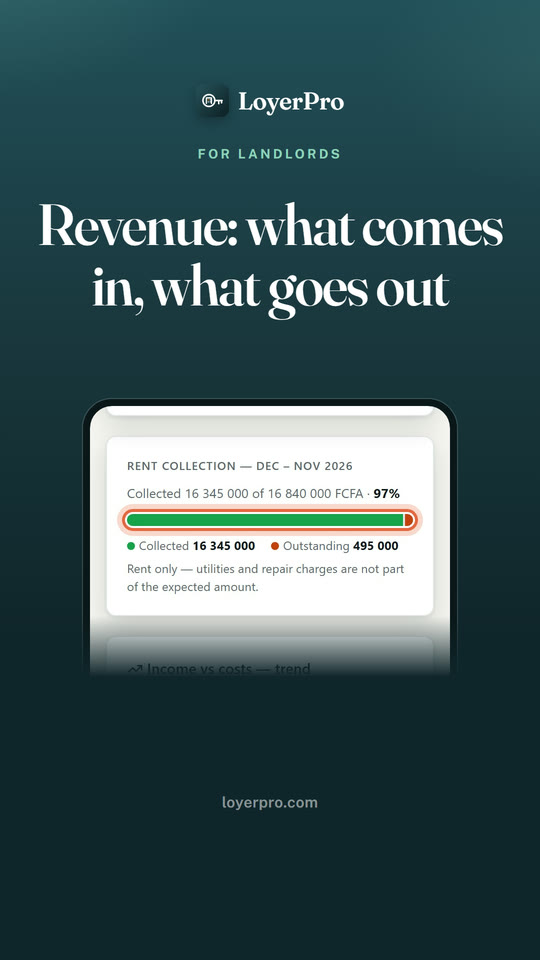
  3. La barre compare les loyers attendus et encaissés. En orange : ce qui reste dû.
  4. Le graphique met côte à côte, mois par mois, vos revenus et vos dépenses, réparations comprises.
  5. En dessous, votre revenu net : ce qui vous reste vraiment, mois par mois.
  6. Enfin, ce que rapporte chaque immeuble, mois par mois.
  1. Open Monthly revenue. At the top: the total collected over the period.
  2. Then this month, the monthly average, and the building that earns the most.
  3. The bar compares the rent expected with the rent collected. In orange: what is still owed.
  4. The chart puts your income and your costs side by side, month by month, repairs included.
  5. Below it, your net income: what you really keep, month by month.
  6. Finally, what each building earns, month by month.
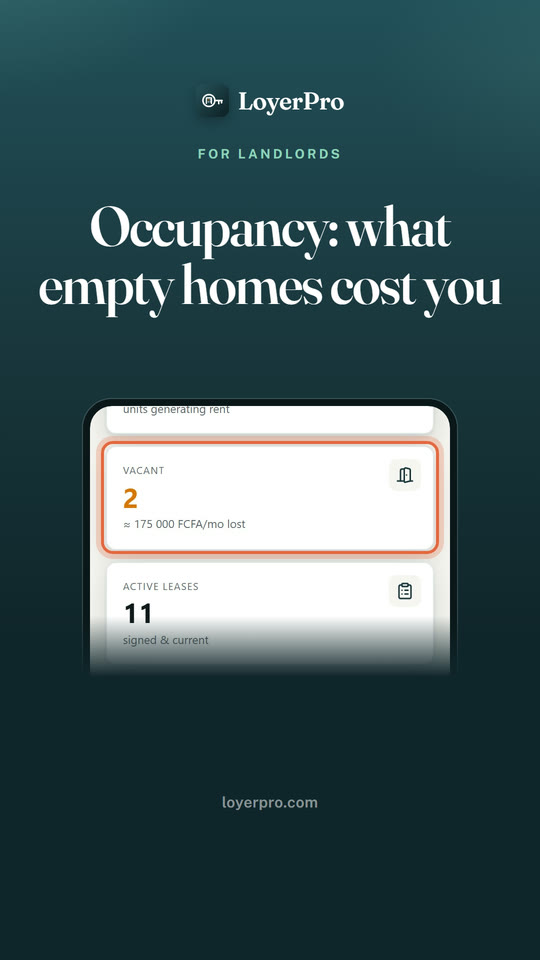
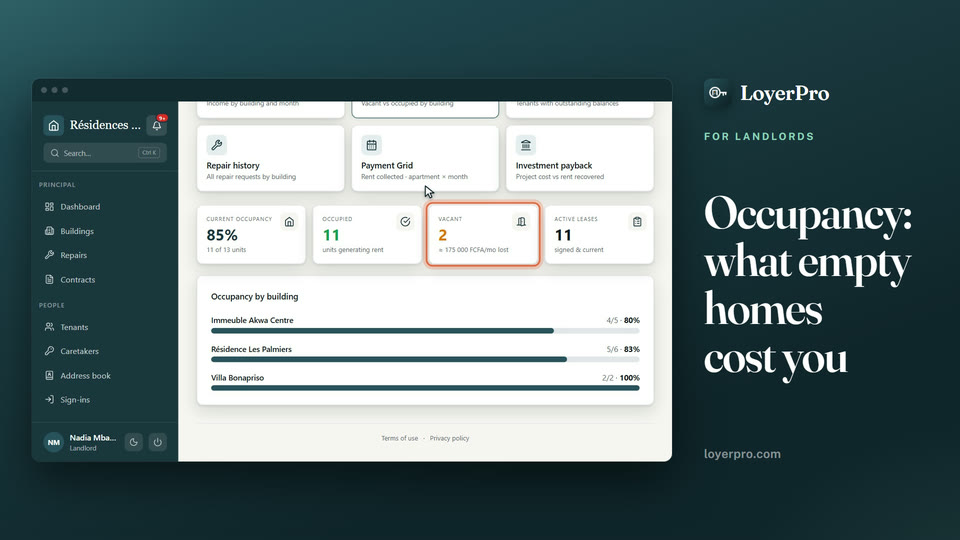
▶Sur téléphoneOn a phone0:300:31Lire « Occupation : ce que coûtent les logements vides » sur téléphonePlay “Occupancy: what empty homes cost you” on a phone
▶Sur ordinateurOn a computer0:290:30Lire « Occupation : ce que coûtent les logements vides » sur ordinateurPlay “Occupancy: what empty homes cost you” on a computer

Pour les bailleursFor landlords

Occupation : ce que coûtent les logements videsOccupancy: what empty homes cost you

Les logements occupés et vides, et ce que les vides vous coûtent chaque mois.Homes with a tenant, empty homes, and what the empty ones cost you each month.

Lire le texteRead the words
  1. Ouvrez « Taux d’occupation ». Il montre l’état d’aujourd’hui.
  2. Le taux d’occupation : combien de logements ont un locataire.
  3. Les logements vides, et ce qu’ils vous font perdre chaque mois.
  4. Puis vos baux signés et en cours.
  5. En dessous, chaque immeuble : ses logements occupés, sur le total.
  6. Un logement vide, c’est un loyer perdu : c’est le chiffre à faire baisser.
  1. Open Occupancy rate. It shows how things stand today.
  2. The occupancy rate: how many homes have a tenant.
  3. The empty homes, and the rent they cost you each month.
  4. Then your signed leases in force.
  5. Below, each building: its homes with a tenant, out of the total.
  6. An empty home is rent you lose: this is the number to bring down.
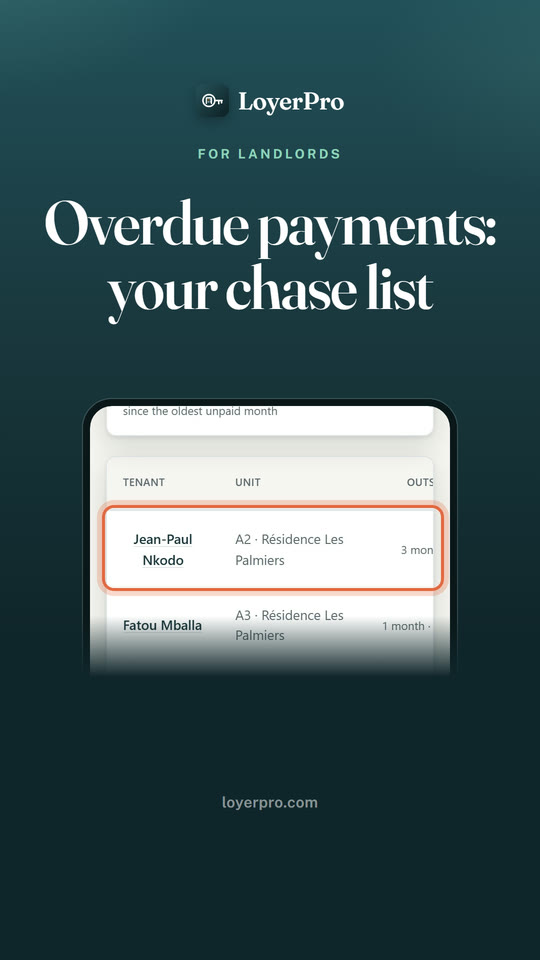
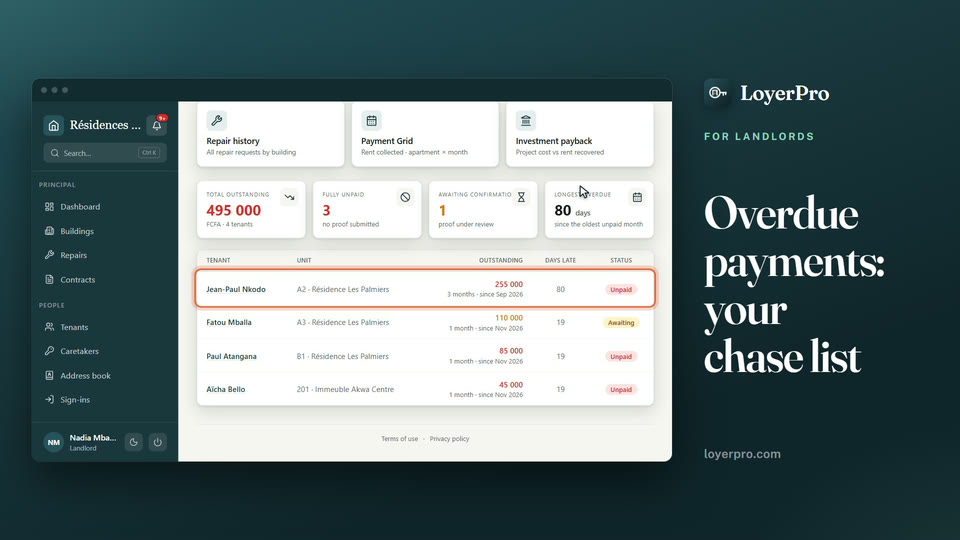
▶Sur téléphoneOn a phone0:370:36Lire « Retards de paiement : votre liste de relance » sur téléphonePlay “Overdue payments: your chase list” on a phone
▶Sur ordinateurOn a computer0:360:35Lire « Retards de paiement : votre liste de relance » sur ordinateurPlay “Overdue payments: your chase list” on a computer

Pour les bailleursFor landlords

Retards de paiement : votre liste de relanceOverdue payments: your chase list

Qui vous doit, combien, depuis quand — et un nom pour appeler ou écrire.Who owes you, how much, since when — and a name to call or write to.

Lire le texteRead the words
  1. Ouvrez « Paiements en retard » : tout ce qui reste dû aujourd’hui.
  2. Le total, ceux qui n’ont rien envoyé, ceux qui attendent votre confirmation, et le plus long retard.
  3. La liste commence par la plus grosse dette : le montant, le nombre de mois, depuis quand.
  4. « En attente » : le locataire a envoyé une preuve. Vérifiez-la dans Paiements.
  5. Appuyez sur un nom : sa fiche s’ouvre, pour l’appeler ou lui écrire sur WhatsApp.
  6. Exportez la liste chaque mois : c’est votre liste de relance.
  1. Open Overdue payments: everything still owed today.
  2. The total, who sent nothing, who waits for your confirmation, and the longest delay.
  3. The list starts with the biggest debt: the amount, how many months, since when.
  4. Awaiting means the tenant has sent a proof. Check it in Payments.
  5. Press a name: their card opens, to call them or write on WhatsApp.
  6. Export the list every month: it is your list of people to chase.
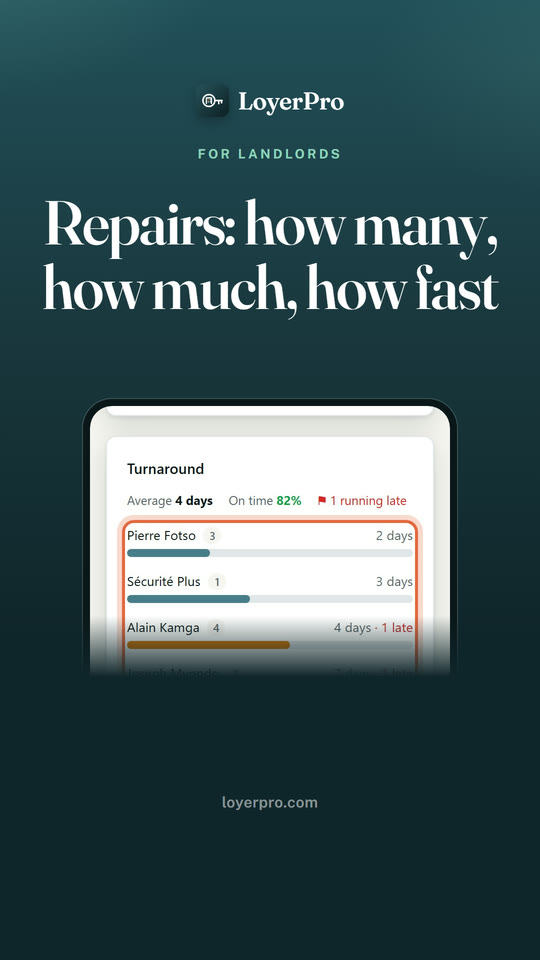
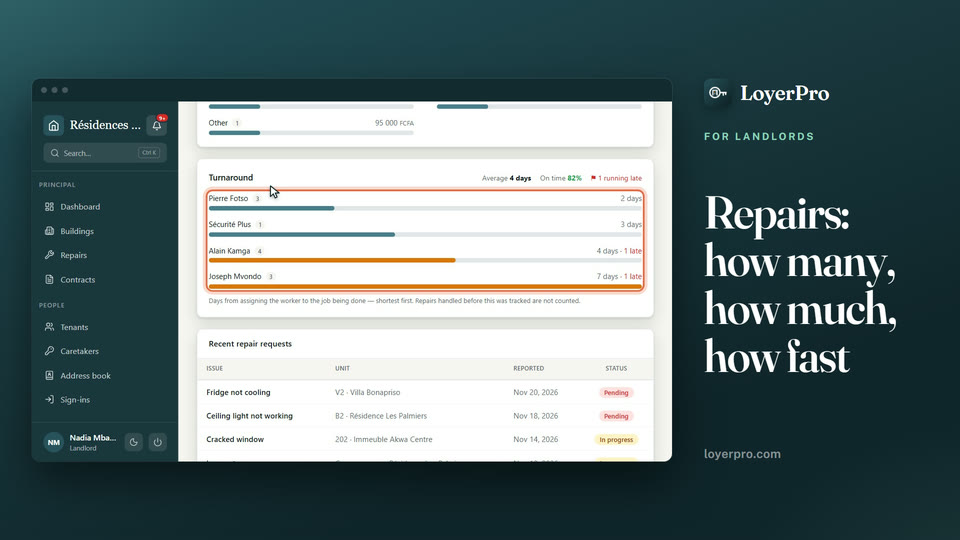
▶Sur téléphoneOn a phone0:340:34Lire « Réparations : combien, à quel prix, en combien de jours » sur téléphonePlay “Repairs: how many, how much, how fast” on a phone
▶Sur ordinateurOn a computer0:330:33Lire « Réparations : combien, à quel prix, en combien de jours » sur ordinateurPlay “Repairs: how many, how much, how fast” on a computer

Pour les bailleursFor landlords

Réparations : combien, à quel prix, en combien de joursRepairs: how many, how much, how fast

Les demandes, leur coût par type, et combien de jours met chaque artisan.The requests, their cost by type, and how many days each worker takes.

Lire le texteRead the words
  1. Ouvrez « Historique des réparations » : toutes les demandes de la période.
  2. Combien sont ouvertes, en cours, résolues — et dans quel immeuble.
  3. Par type : plomberie, électricité, et ce que chacun vous a coûté.
  4. Le délai de traitement : combien de jours met chaque artisan, du plus rapide au plus lent.
  5. En rouge, les travaux qui ont dépassé le délai, et ceux qui sont en retard en ce moment.
  6. En bas, les dernières demandes et où elles en sont.
  1. Open Repair history: every request of the period.
  2. How many are open, under way or resolved — and in which building.
  3. By type: plumbing, electricity, and what each one cost you.
  4. Turnaround: how many days each worker takes, fastest first.
  5. In red, the jobs that went past their deadline, and the ones late right now.
  6. At the bottom, the latest requests and where they stand.
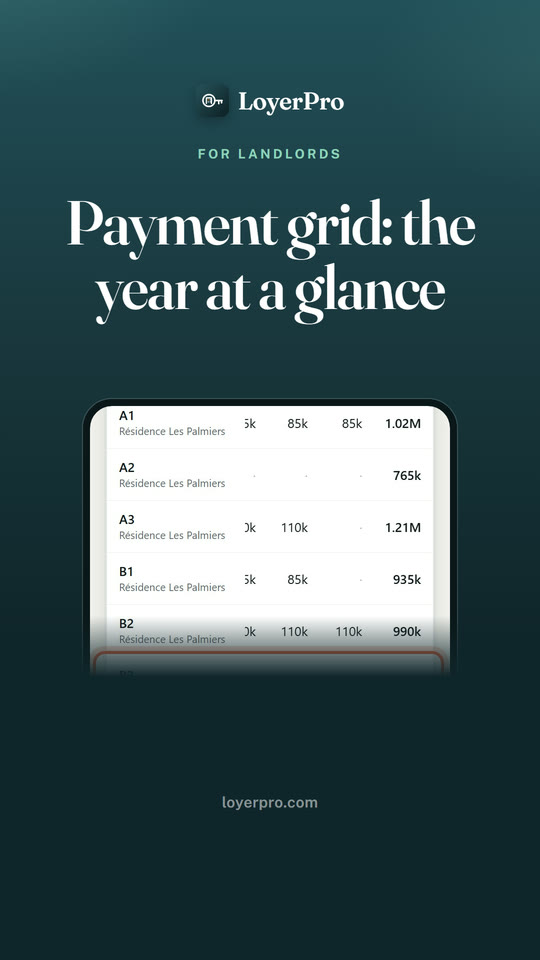
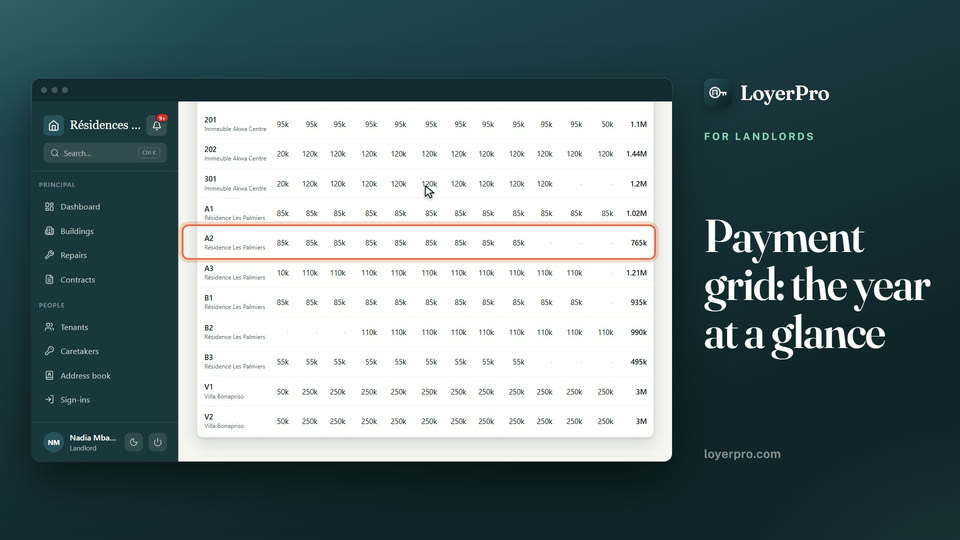
▶Sur téléphoneOn a phone0:310:31Lire « Grille des paiements : l’année d’un coup d’œil » sur téléphonePlay “Payment grid: the year at a glance” on a phone
▶Sur ordinateurOn a computer0:300:30Lire « Grille des paiements : l’année d’un coup d’œil » sur ordinateurPlay “Payment grid: the year at a glance” on a computer

Pour les bailleursFor landlords

Grille des paiements : l’année d’un coup d’œilPayment grid: the year at a glance

Chaque logement, chaque mois : le loyer encaissé et les mois sans loyer.Every home, every month: the rent collected and the months without rent.

Lire le texteRead the words
  1. Ouvrez « Grille des paiements » : chaque logement, chaque mois.
  2. Chaque case montre le loyer encaissé, en milliers de francs CFA.
  3. Un point, c’est un mois sans loyer : un logement vide, ou un locataire en retard.
  4. Tout à droite, le total de chaque logement sur la période.
  5. Tapez le nom d’un immeuble pour ne garder que ses logements.
  6. Exportez la grille : votre cahier des loyers, sans papier.
  1. Open Payment grid: every home, every month.
  2. Each cell shows the rent collected, in thousands of CFA francs.
  3. A dot is a month without rent: an empty home, or a tenant behind.
  4. On the far right, each home's total for the period.
  5. Type a building's name to keep only its homes.
  6. Export the grid: your rent book, without paper.
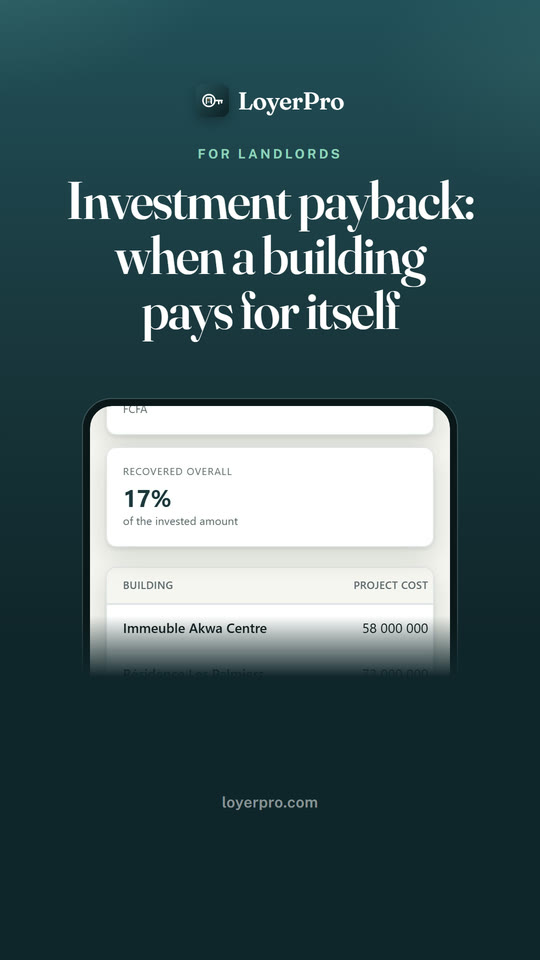
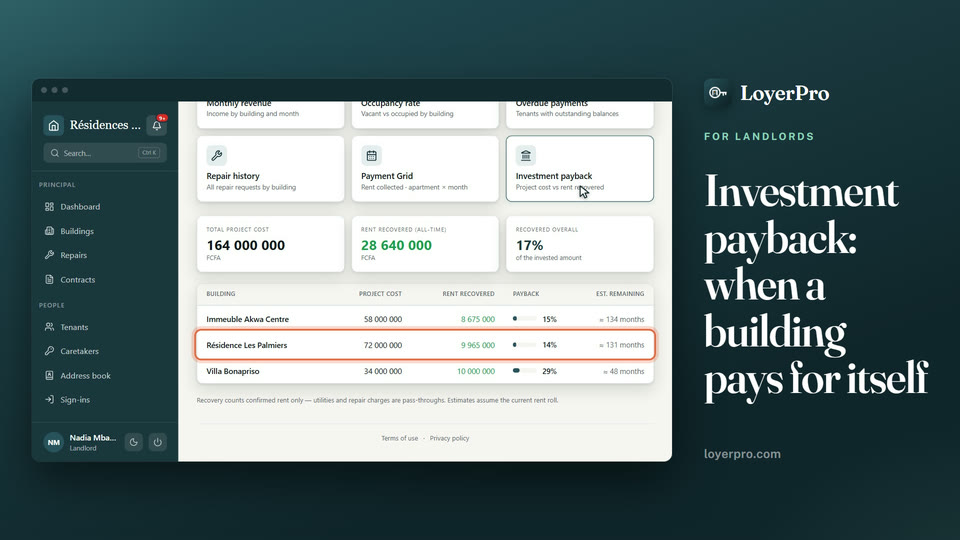
▶Sur téléphoneOn a phone0:370:38Lire « Amortissement : quand l’immeuble se rembourse » sur téléphonePlay “Investment payback: when a building pays for itself” on a phone
▶Sur ordinateurOn a computer0:370:42Lire « Amortissement : quand l’immeuble se rembourse » sur ordinateurPlay “Investment payback: when a building pays for itself” on a computer

Pour les bailleursFor landlords

Amortissement : quand l’immeuble se rembourseInvestment payback: when a building pays for itself

Le coût de chaque immeuble face aux loyers récupérés, et les mois qui restent.What each building cost against the rent recovered, and the months left.

Lire le texteRead the words
  1. D’abord, dans Immeubles, écrivez ce que l’immeuble vous a coûté : le coût du projet.
  2. La carte de l’immeuble montre alors la part déjà remboursée par les loyers.
  3. Dans Rapports, ouvrez « Amortissement de l’investissement ».
  4. Le coût total, les loyers déjà récupérés, et la part remboursée.
  5. Pour chaque immeuble : où vous en êtes, et environ combien de mois il reste.
  6. Seuls les loyers confirmés comptent. L’estimation suit vos loyers actuels.
  1. First, in Buildings, type what the building cost you: the project cost.
  2. The building's card then shows how much the rent has already paid back.
  3. In Reports, open Investment payback.
  4. The total cost, the rent recovered so far, and the share paid back.
  5. For each building: where you stand, and about how many months are left.
  6. Only confirmed rent counts. The estimate follows your current rents.

À votre tour,
en deux minutes.
Your turn,
in two minutes.

Ouvrez votre compte en deux minutes. Ou écrivez-nous : on vous installe et on importe vos locataires.Open your account in two minutes. Or write to us: we set you up and load your tenants.